On-line reports are created in the same way as a report printed on paper, but with this type of report you can view it on your work station, on-line. For more information on how to print a report, see About printing reports.
When you create a new report, you must first define the description. See Define description for a version report for instructions. From the description panel you can access the panel where you define the on-line report defaults. These are, e.g., how many days you want to keep the on-line report in the system, how many column headings you want to see, etc.
- Select the Work with reports menu item.
- On the main panel, select the applicable report and click Change.
- On the Work with reports, Description panel, click On-line report default.
- You acccess Work with reports, On-line report defaults. Complete the following information:
- Days to keep report
- Enter how many days the report should be kept in the system. It is calculated from the day when the on-line report was created. Through the Work with on-line report headers menu item, you can see the deletion date and through this information you know when to delete an on-line report. Enter 10.
- Heading lines
- Enter how many column heading lines you want to see on the on-line report when you look at it using the Display on-line reports menu item. Maximum number of lines is 8.
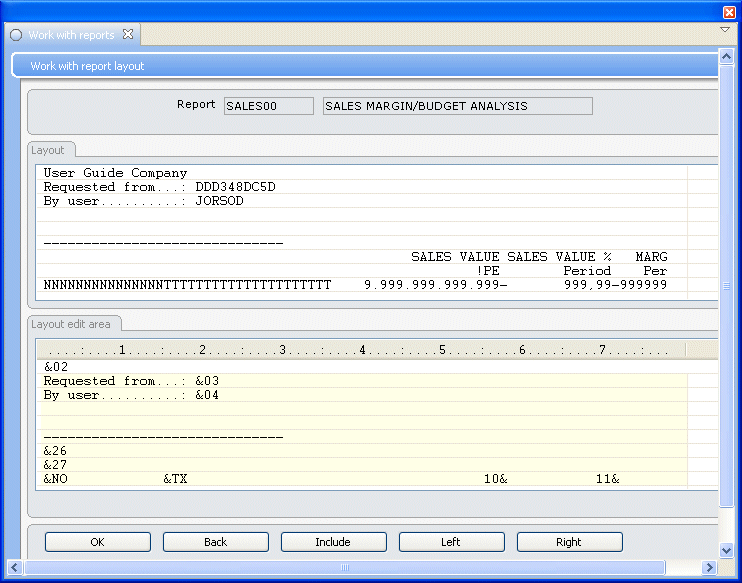
- The column heading lines are the lines you see when you define the report layout. For an explanation, the Work with report layout panel is shown below:
- Connected report
- Enter the connected report that will be used when you drill-down from an On-line line report to an On-line version report. This function is useful to reveal which entries build up the sum of a line in a line report.
Panel image
Tip: For more information about defining layout, see About working with layout.
On the above panel you see 9 lines on the bottom part of the panel. The second last line (starting with “&27” to the left) is regarded as line number 1. The line above this line is regarded as line number 2, etc. If you, e.g. enter 7 in this field, then the lines 1, 2, 3, 4, 5, 6 and 7 (counted from the second last line and upwards), will be shown on the on-line report.
The default value for Column heading lines can be changed when you look at the on-line report, using the Display on-line report menu item.
Click OK. Exit the routine.